
Security
Sign-in and security settings exist only on a guardian's personal phone: Settings → Sign-in and Settings → Security.
Sign-in
This lists the ways you can sign in: Email and password, Apple, Google.
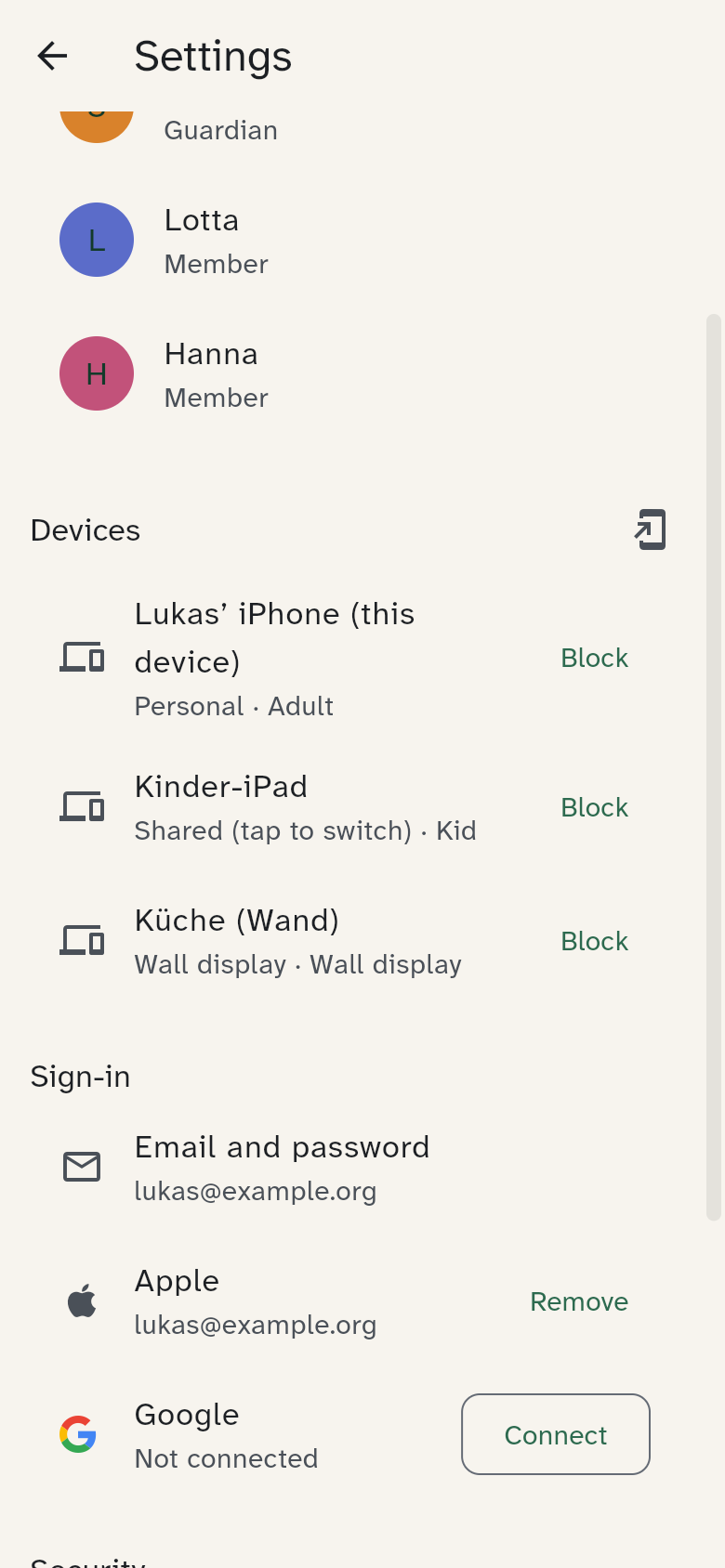
- Connect: next to Apple or Google, tap Connect and confirm in Apple's or Google's window. From then on that account gets you in too, on any device. Connecting works only in the app on your phone, not in the browser.
- Remove: takes a method away again. The last one always stays, so you cannot lock yourself out.
Apple and Google learn that you use WuselWall and pass on your name and email address – nothing else. WuselWall never asks Google for your calendar or contacts.
Two-factor sign-in
On top of the password, WuselWall asks for a 6-digit code from an authenticator app at every sign-in (your password manager's app, or one from Google, Microsoft or Aegis, for example).
- Next to Two-factor sign-in, tap Turn on.
- Scan the QR code with the authenticator app.
- Enter the 6-digit code the app shows.
From then on every new sign-in asks for the code; without it a phone sees none of the household's data. Turn off takes it back.
Guardian PIN
The 6-digit PIN you enter on shared devices (Who are you?). Here you set a new PIN — even if the old one is locked after too many wrong tries. Only your own, signed-in phone may do this.
Passkey
With a passkey you sign in by fingerprint or face instead of a password. The feature is new and not yet available on every device.
Good to know
- Password: at least 10 characters; a whole sentence is better.
- Lost phone: block it at once from another device (see Members and devices).
- Your data lives on the family's server, not with a cloud provider. Traffic between phone and server passes through a protective service (Cloudflare), which does not store it.