
Setting up
There are three ways onto a new device. The start screen shows them:
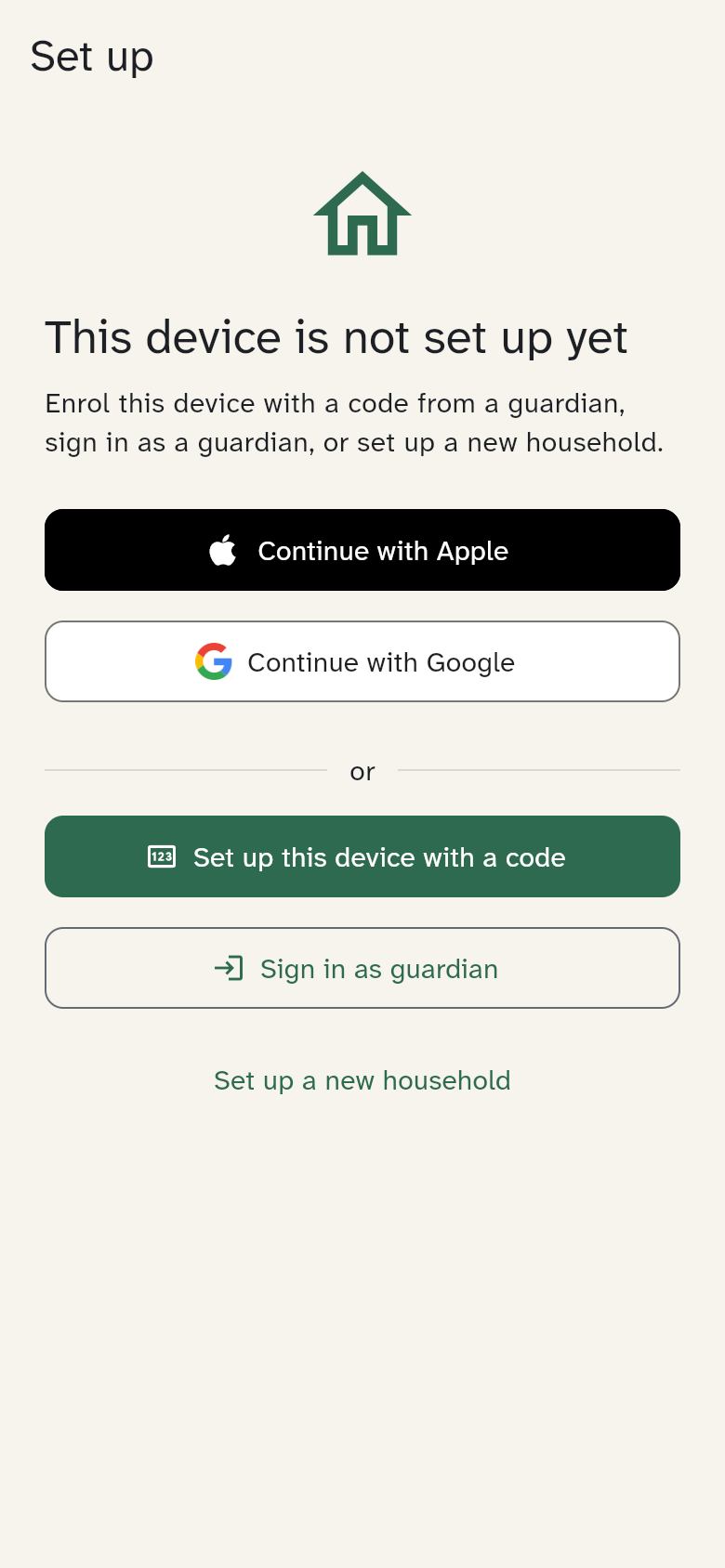
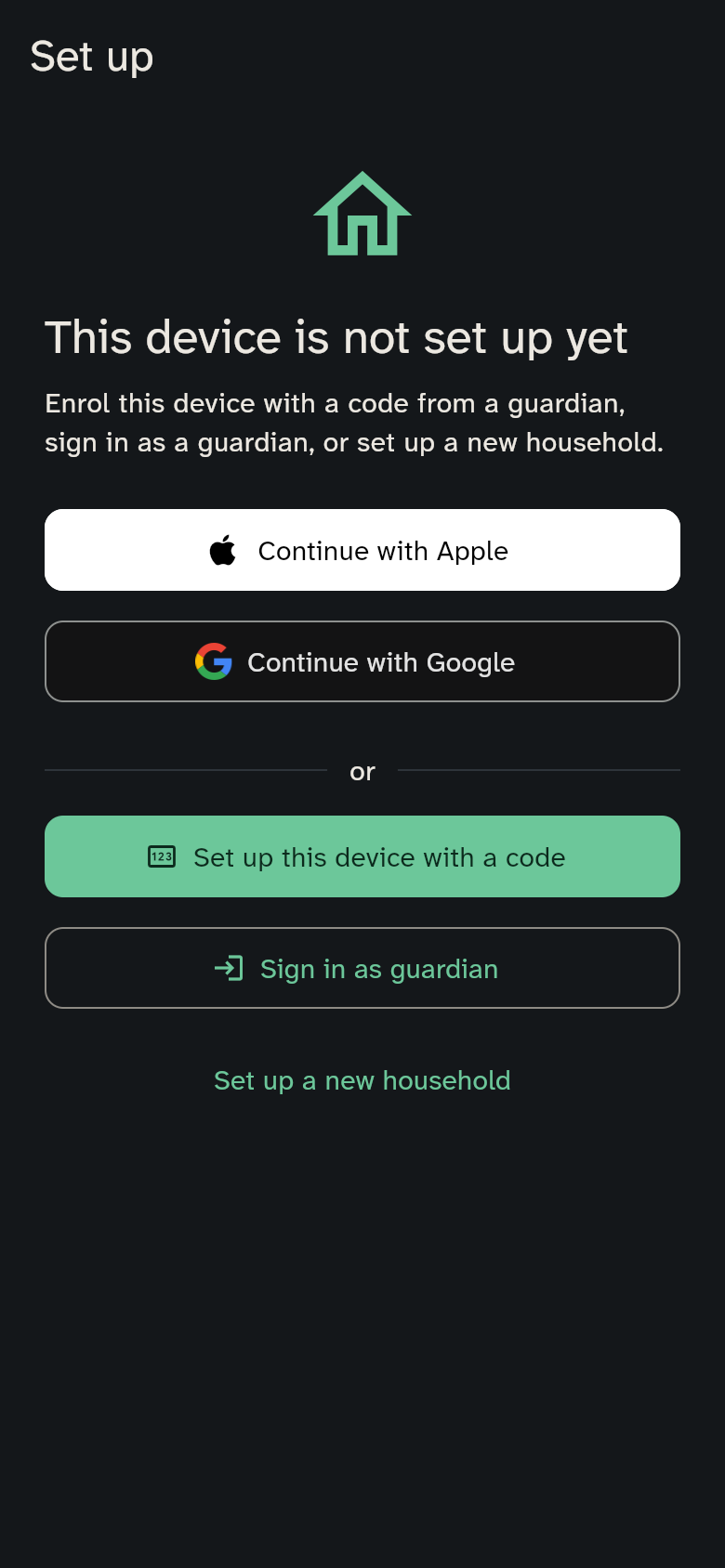
1. Set up a new household (once)
This is done by whoever installed WuselWall for the family — once, at the very beginning.
- Tap Set up a new household.
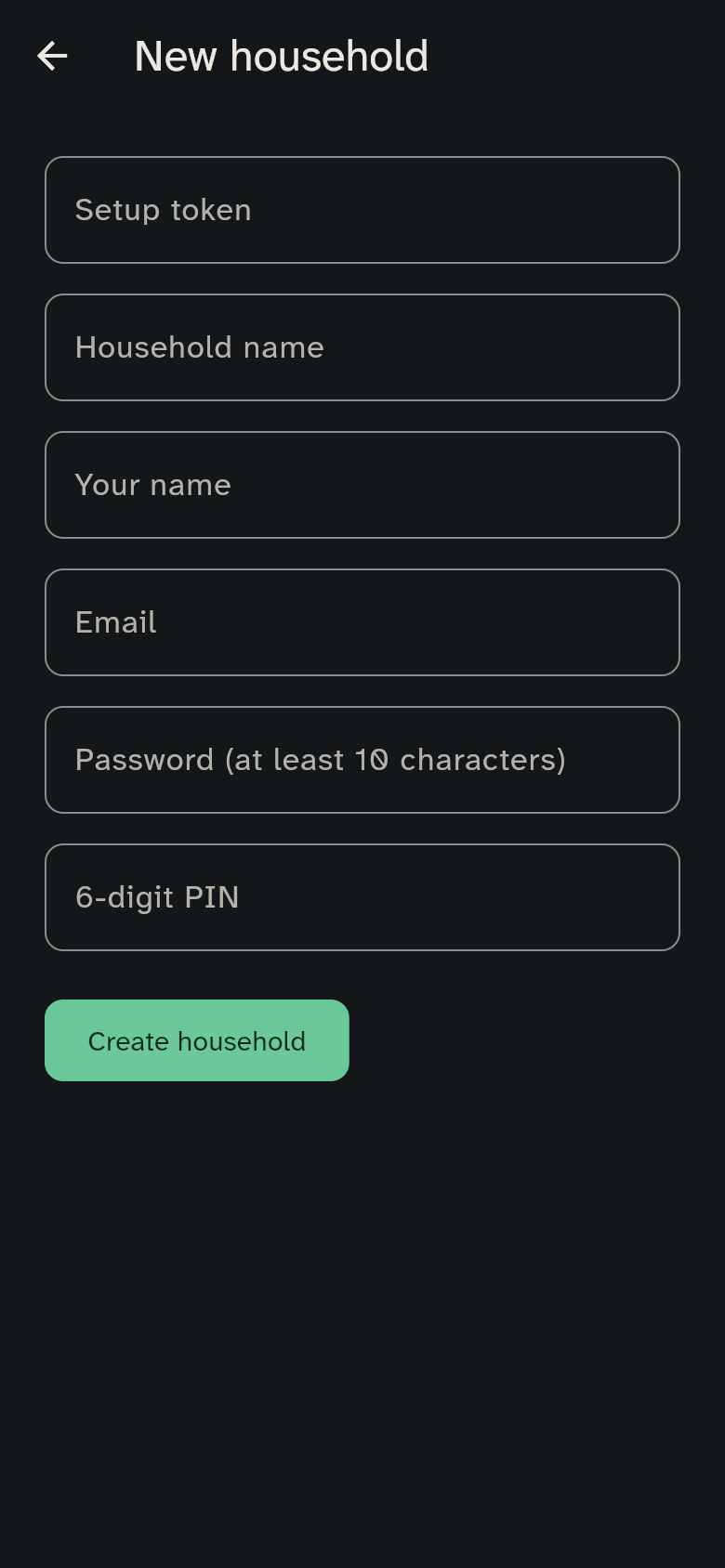
- Enter the setup token. The person who runs the server gives it to you. It works once.
- Choose a household name and enter your name, your email and a password (at least 10 characters).
- Pick a 6-digit PIN. Later you use it to confirm important actions on shared devices.
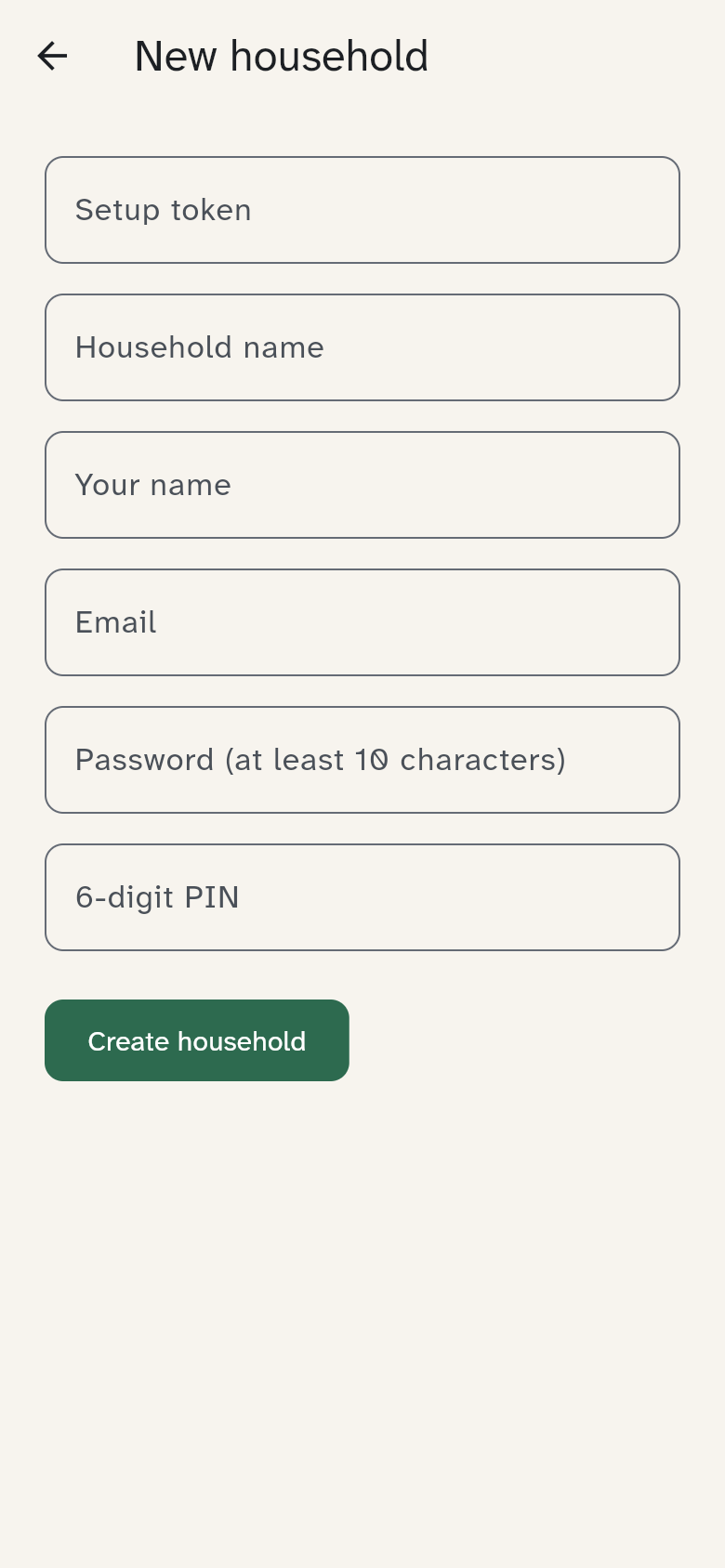
After that, setup is closed for good: nobody else can create a second household.
2. Sign in as a guardian
On your own phone you sign in with email and password. The first time, WuselWall asks for a name for the device ("Lukas's phone") — that is how you recognise it in the device list and can block it if it is lost.
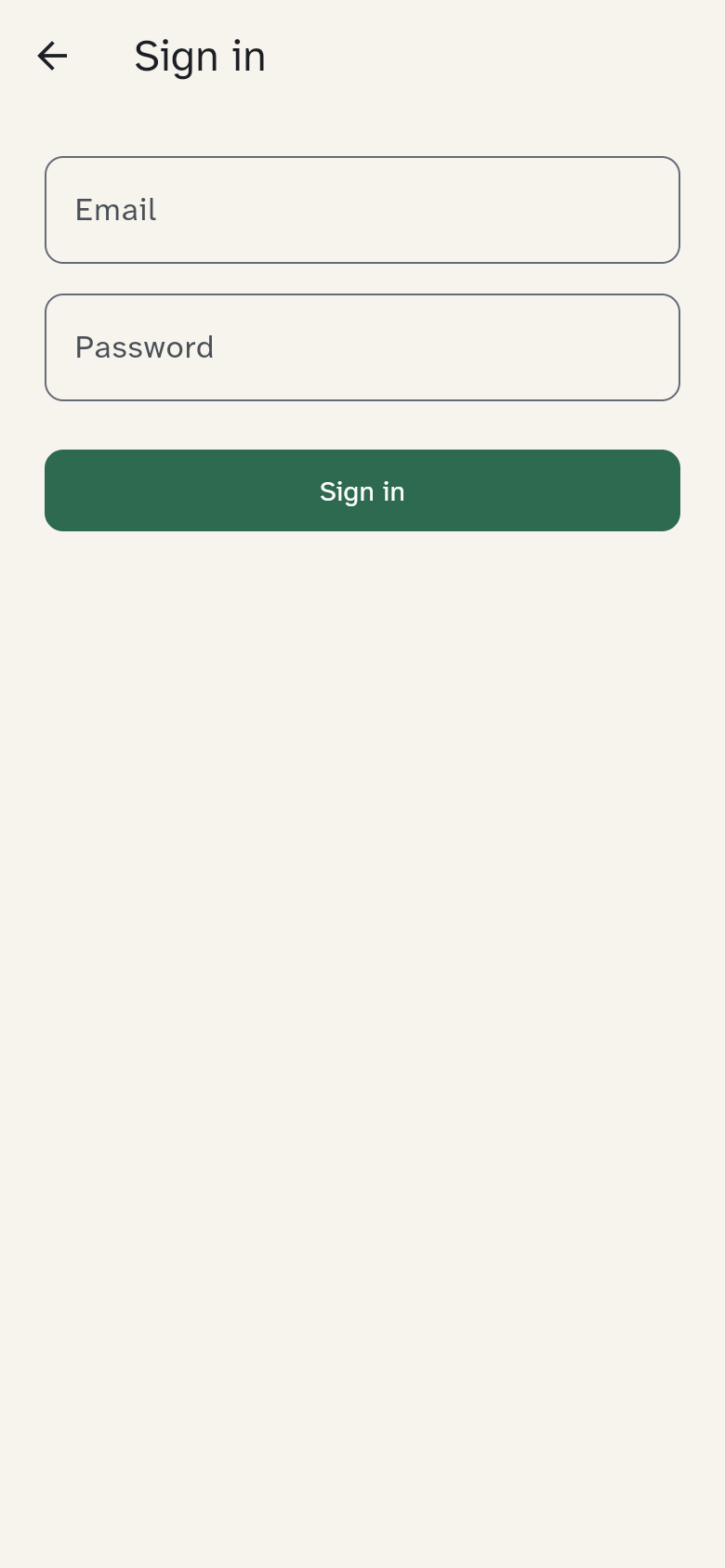
Instead of email and password you can also use Continue with Apple or Continue with Google right on the start screen – as long as your Apple or Google account has the same email address as your WuselWall account. If it has a different one (or you use Apple's "Hide My Email"), sign in once with email and password and connect Apple or Google under Settings → Sign-in (see Security).
If you turned on two-factor sign-in, the 6-digit code from your authenticator app follows (see Security).
3. Set up a device with a code
This is how kids' tablets, the wall display and other shared devices join the household:
- A guardian opens Settings → Add device on their phone and creates a code (see Members and devices).
- On the new device, tap Set up this device with a code and enter the code — or scan the QR code.
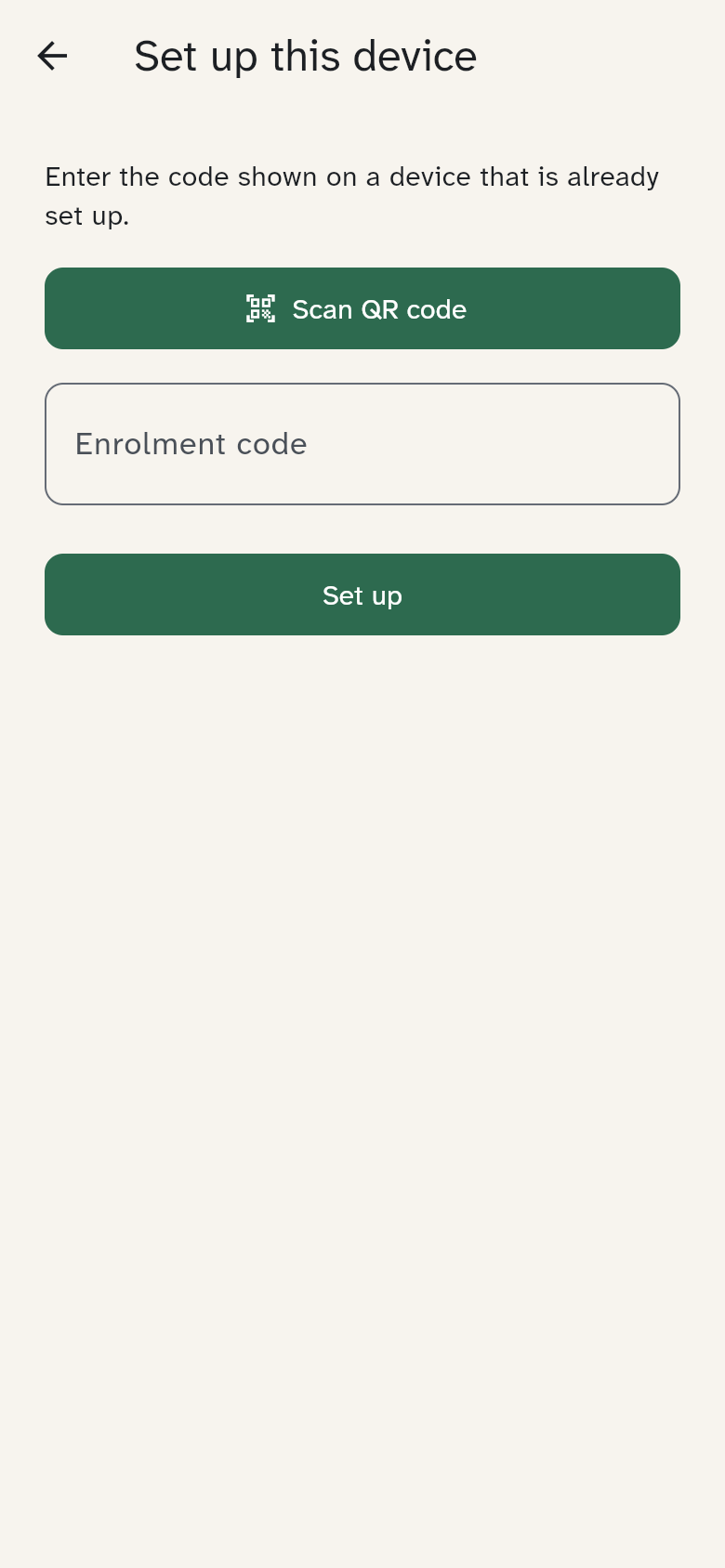
A code is valid for 10 minutes and works once. If it doesn't match, create a new one.