
Timetable
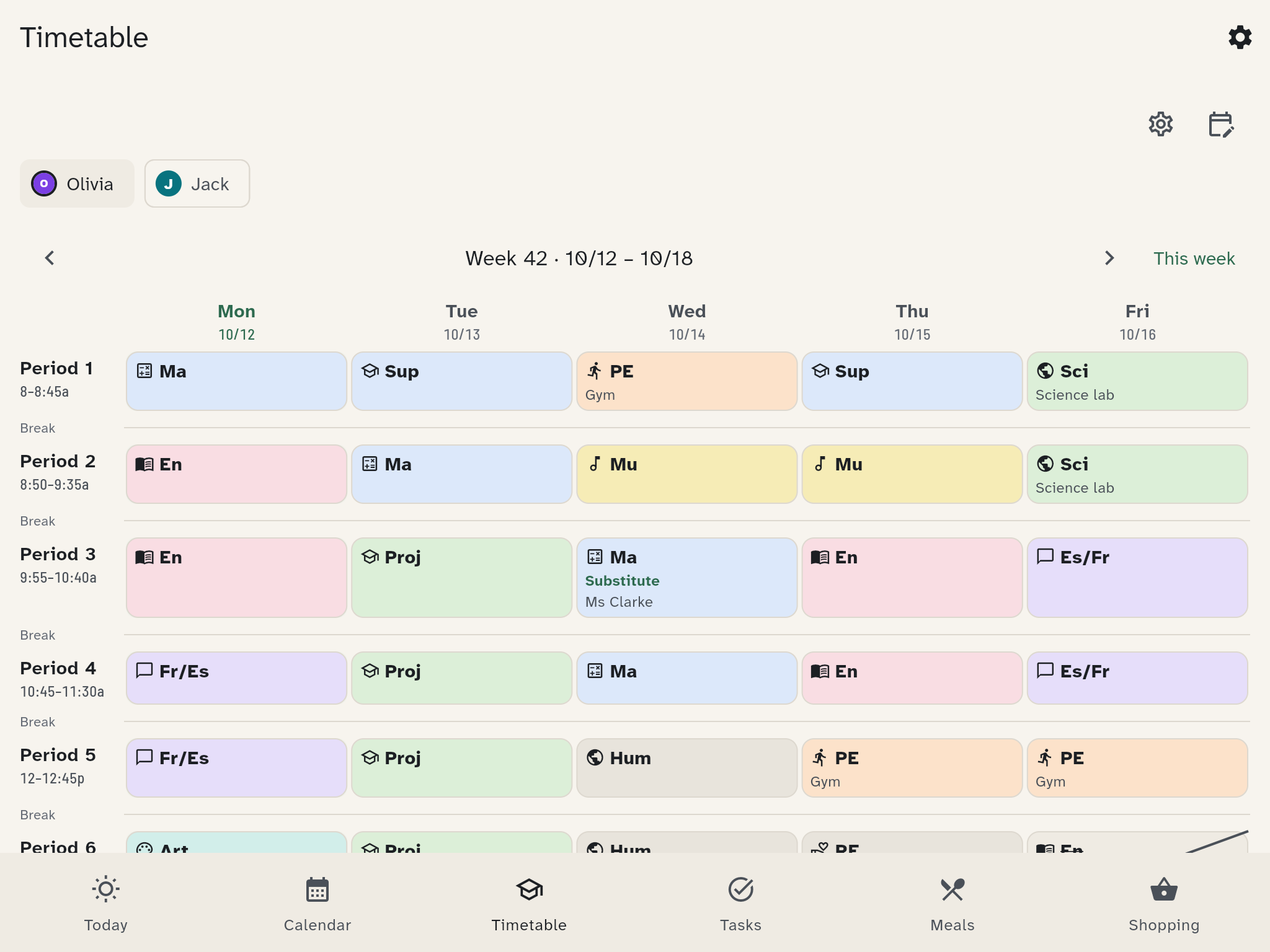
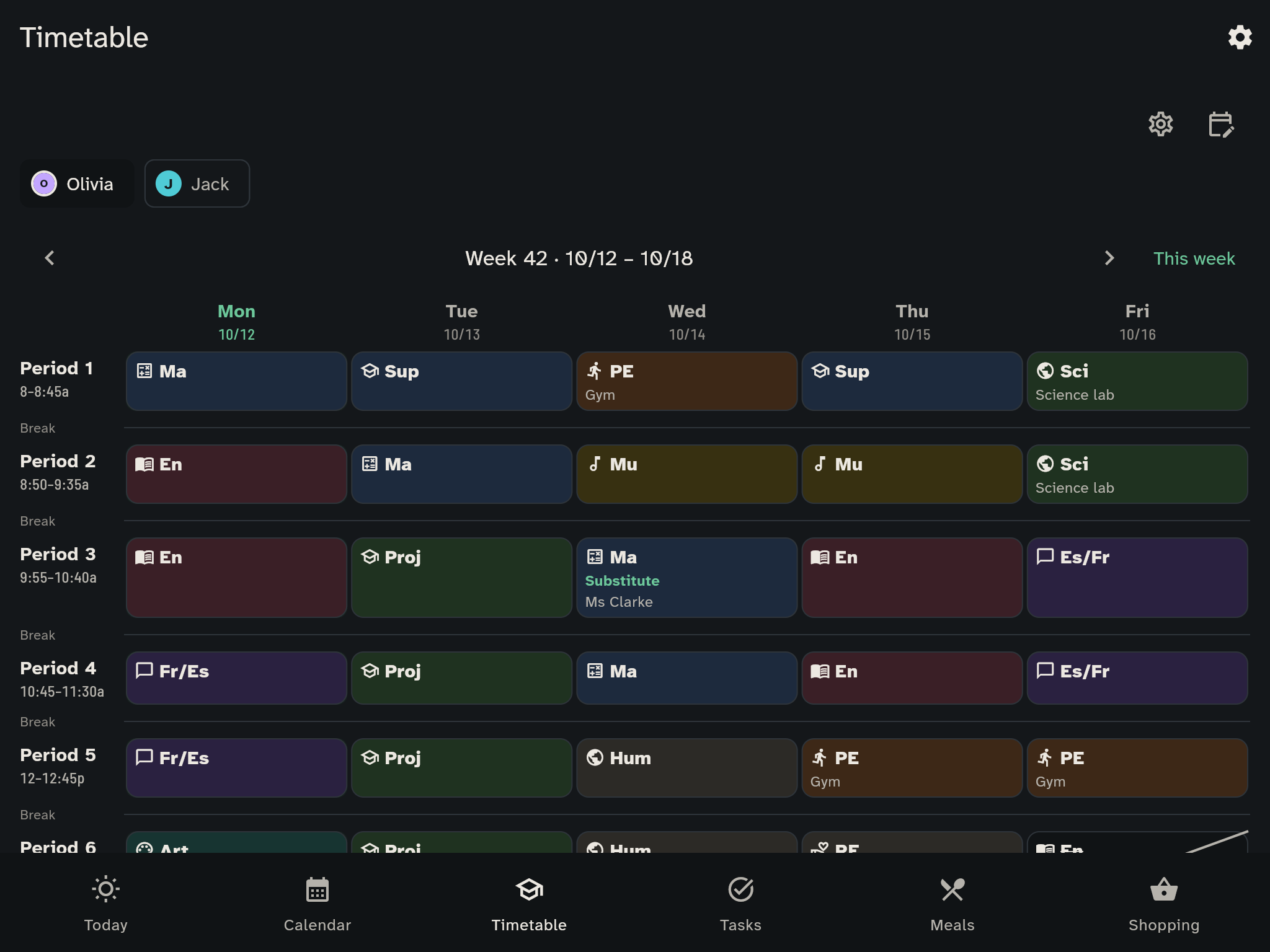
The timetable shows each child their week: which lessons, which subjects and what is different. Adults maintain it. The kitchen wall displays it.
Setting up
The first time, tap Set up school. This covers:
- the school with its name and region: country, then canton or state, and if you like district or municipality. The region decides the public and school holidays, see below
- the bell times: lessons and breaks with start and end (Add lesson, Add break)
- the terms, for example half-years, with From and To. If there are A and B weeks, enter an A/B anchor week: a calendar week that is an A week
- the subjects with a short name and a colour. For each subject you can list Things to bring, for example sports kit, and decide whether it shows on the wall. The subjects are a starting suggestion that fits your country: rename or delete them
- the holidays and free days
The Save action appears at the top right only when you have unsaved changes to the school name, region or bell times. It saves all changed sections together.
Bell times run from earliest to latest, with the first lesson shown as Period 1 and breaks between lessons.
Public and school holidays
The region decides which public and school holidays apply to a school. You choose it in steps: first the country (Germany, Austria, Switzerland or Liechtenstein), then the canton or state, and if you like the district or municipality.
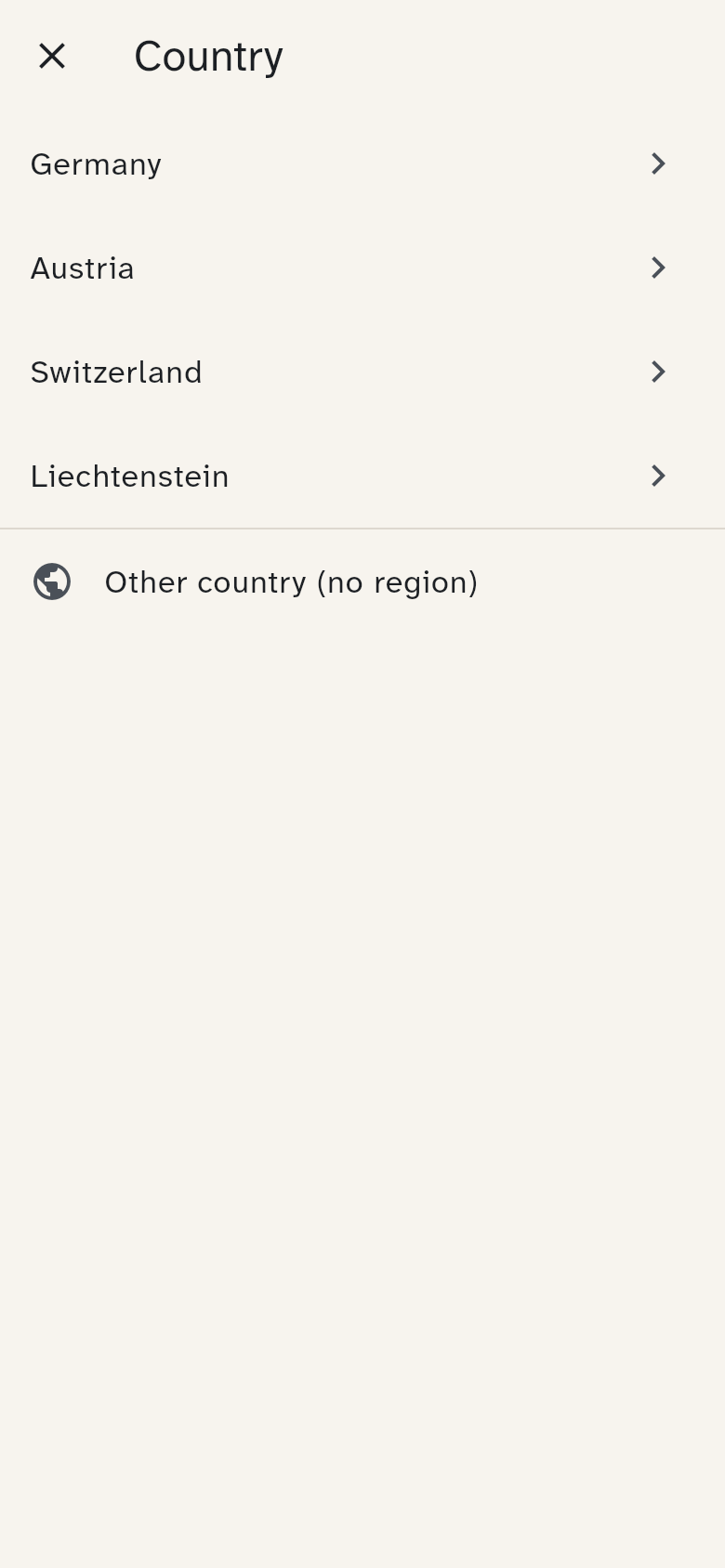
Cantons and states are listed alphabetically from Z to A in the app’s language. Swiss cantons show their abbreviation, for example Canton Aargau (AG). Search by name or abbreviation.
If you tap Continue without a region, the region stays empty. Then there are no automatic public holidays, and you enter school holidays by hand. The household's region is also set under Household settings.
Public holidays come automatically from the region. You do not have to import anything: on a public holiday the school day is free, the day's header in the week shows "Public holiday · …", and the warm meal counts a free day like a weekend.
School holidays you bring in with Import school holidays under Holidays and free days. The preview shows the school holidays of the next 18 months for the school's region.
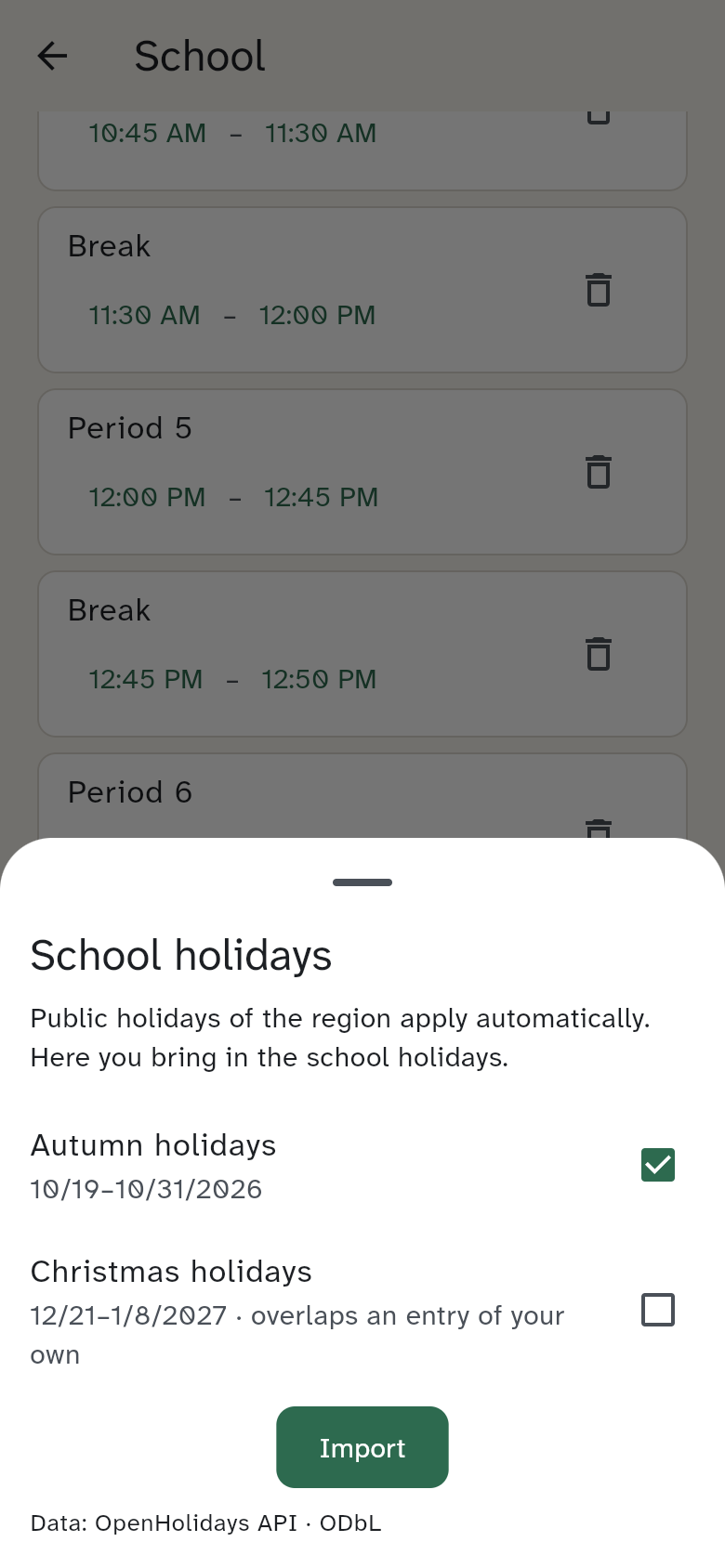
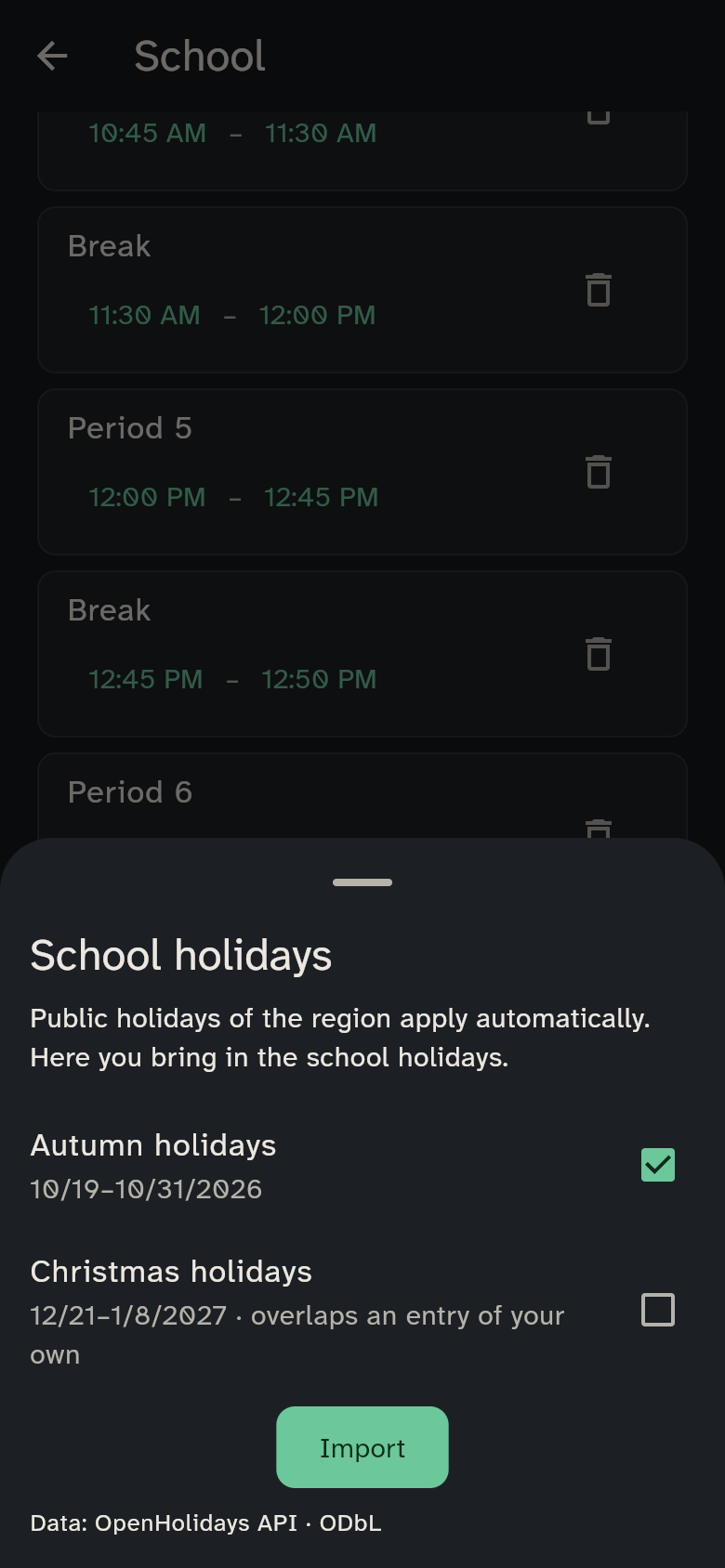
You choose what to bring in. Holidays already imported are marked, and an entry that overlaps one of your own is flagged. Afterwards the holidays are ordinary entries marked "imported": you can change, delete or add to them.
Switzerland
In Switzerland the municipality often sets the school holidays, not the canton. Check the imported dates against your municipality's school calendar and enter any differences by hand.
The data comes from OpenHolidays. Your server fetches it, not the app.
Several schools
If your children go to different schools, add each school: on the school page tap Another school. When there is more than one, choose the school you want to edit under Choose school at the top. The timetable asks which school it belongs to.
Entering a timetable
For each child, enter the timetable for a term. Tap Enter timetable. If no term covers the week shown, first enter its name and start and end dates. Save term and continue takes you straight to the timetable editor.
At the top you can see the child, school and term with its dates. Tap a cell in the grid and choose the subject. Save timetable stays visible at the bottom of the screen as you scroll through the timetable.
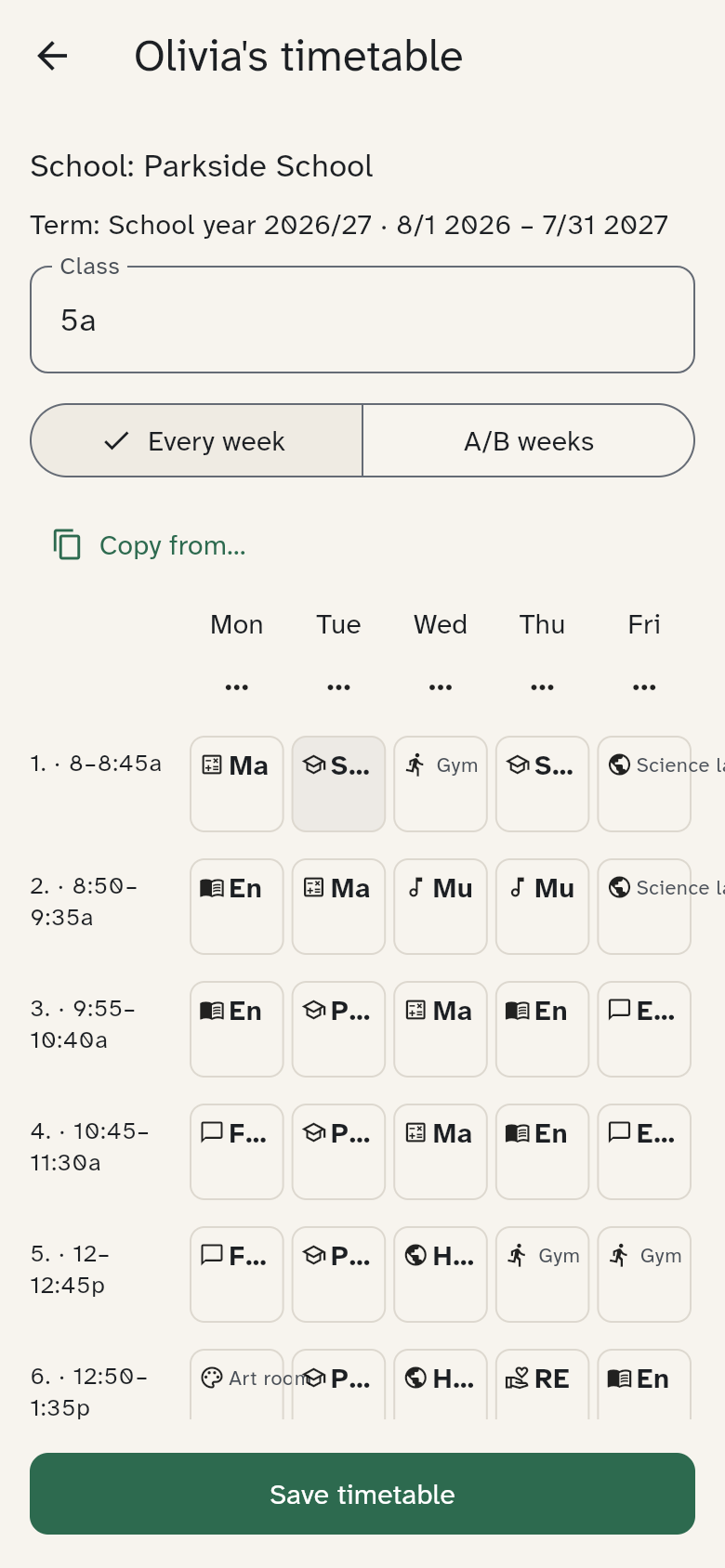
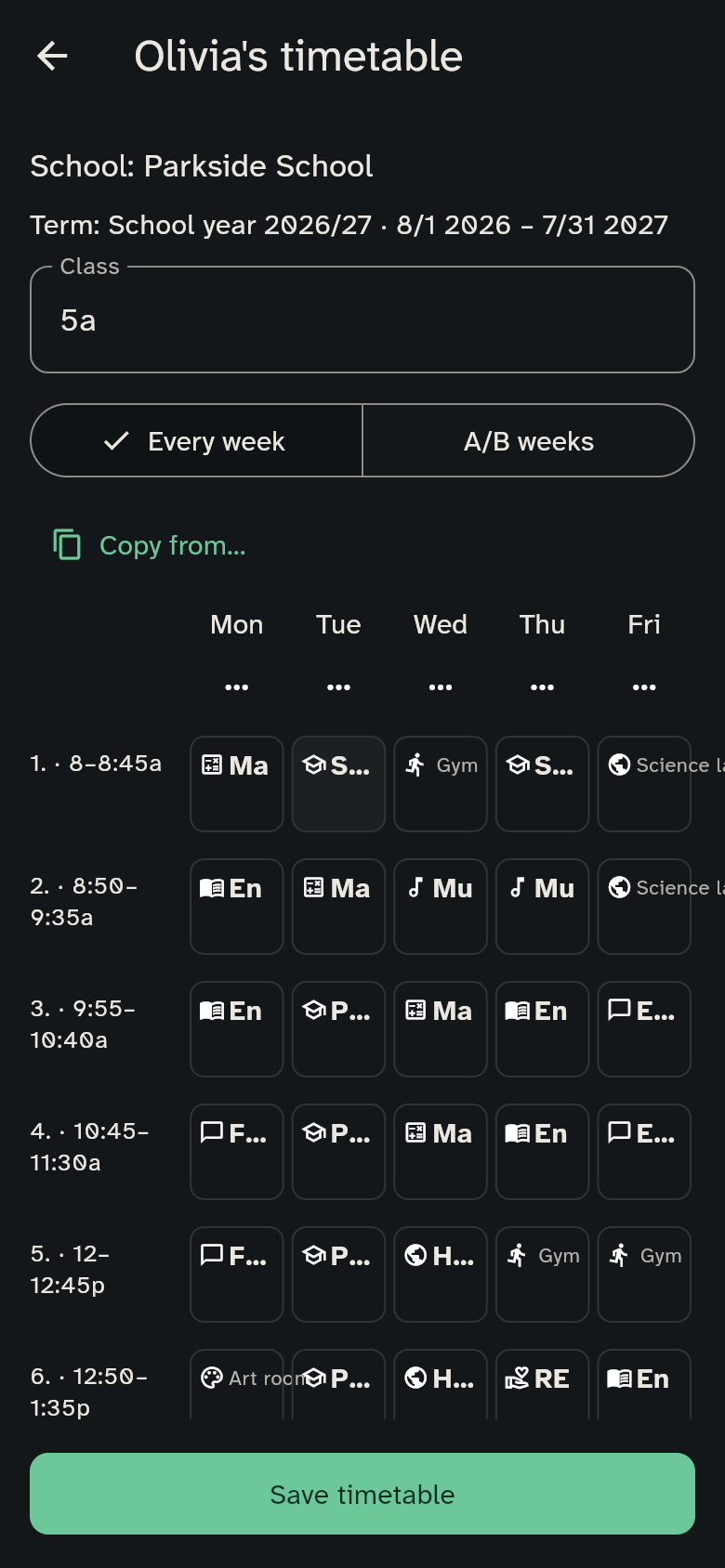
- With Week rhythm choose Every week or A/B weeks. With A/B weeks you enter the A and the B week separately.
- Under After school care add rows, for example the after-school club with its days and times.
- Copy from… takes over a timetable from a sibling or from the last term. That saves a lot of typing.
- Save with Save timetable.
Editing whole days
In the timetable editor each day has a Day actions menu:
- Clear day: removes all lessons of that day
- Copy day to…: copies that day's lessons to other days
- Swap with…: swaps two days
These steps change only the draft. Save timetable writes them. Undo takes back the last step.
The week
The child selector, This week, Edit school and Edit timetable share one toolbar. Child selection stays on the left, This week is centered, and the edit buttons stay on the right. On smaller screens, This week stays centered on its own line and the edit buttons appear below, aligned to the right. Edit school has a school icon; the gear at the top opens the general settings. The previous-week arrow sits beside Monday and the next-week arrow beside Friday, in the row of weekday dates. There is no separate week-number or date-range row.
Choose a child at the top to see their timetable. The selected child has a tinted background, a strong border and a checkmark beside their name.
The week view shows lesson by lesson. Move with Previous week, Next week and This week. Holidays appear as a band above the week, and public holidays in the day's header.
Tap a lesson when something changes:
- Cancelled: the lesson is struck through
- Substitute: with the teacher and a note
- Room changed: with the new room
- Reset: the lesson goes back to the plan
Pack for tomorrow
On the kitchen wall, a child's card shows Pack for tomorrow when something needs to come along, for example sports kit. The child's Today view shows the same, and your own phone gives a packing reminder the evening before. Whether these hints appear is set under Household settings: switched off, they disappear everywhere.
Children report changes
Only guardians maintain the timetable. You can allow a child to report a cancelled lesson, though. A guardian then confirms it. The option is under Household settings, as Members report timetable changes.